
On the “Events” page of TravelLine Price Optimizer, you can add the events that will take place at your hotel or in the city/area.

For example, these can be conferences, concerts, and sports events. As a rule, these kinds of events boost hotel room sales as the events’ attendees arrive in the city and stay in the local hotels.
Add events
To create a new event, click on the “Add event” button.

Enter the name of the event, select the dates when it takes place, and the event type. Then, click on the “Save” button.

Internal events take place at the hotel, or they are somehow related to the hotel. For example, this can be a conference in your banquet hall or some on-site event for your guests.
External events are not related to the hotel itself but are able to increase the occupancy. For example, this can be a football match or a festival not far from the hotel.
Editing and deleting events
If you want to modify or delete an event, click on the “Action” button on the right and select the option you need.

Events in the price calendar
All the events are displayed in the price calendar on the “Price management” page. When mousing over a cell corresponding to date, you will see the list of events that take place on this day. This list can help you select the best price level possible.
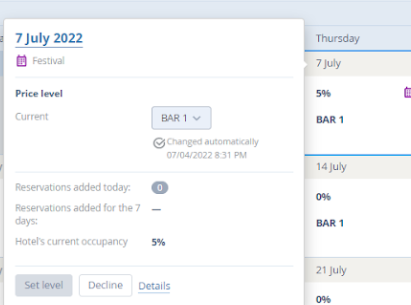
To view more information, click on the underlined “Details” button.
