
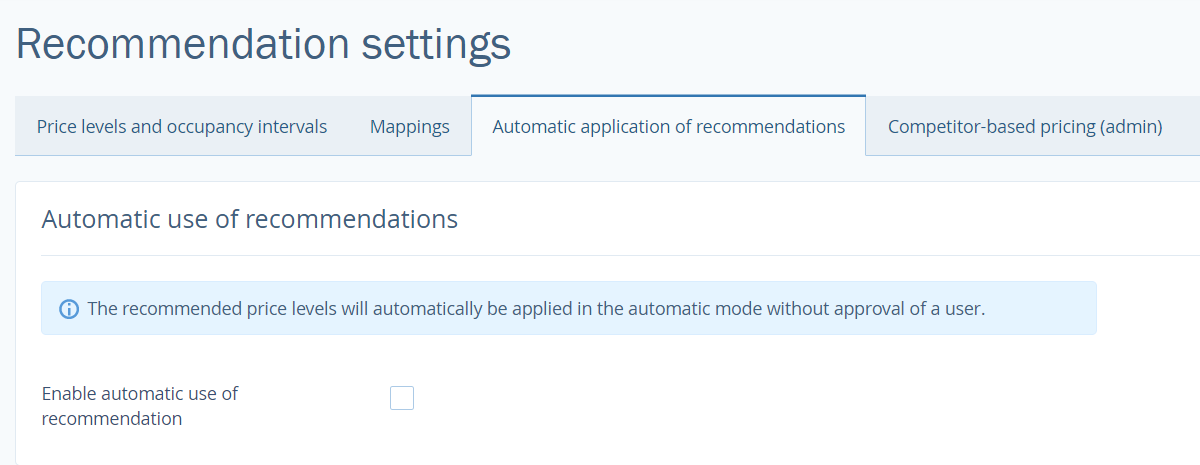
TL Price Optimizer has a manual and an automatic mode. In the manual mode, Price Optimizer suggests you raise or lower the price level but does not change the price rates in the price calendar on the “Price management” page without your approval. In the automatic mode, all the price suggestions are accepted without your approval.
Choose a management mode by going to the “Price Optimizer” > “Settings” > “Recommendations”. Open the “Automatic application of recommendations” tab. The manual mode is set by default. To select the automatic mode, tick the “Enable automatic use of recommendation” box.
Increase or decrease the price level
Mouse over the cell you need and click on the “Approve increase” or the “Approve decrease” button.
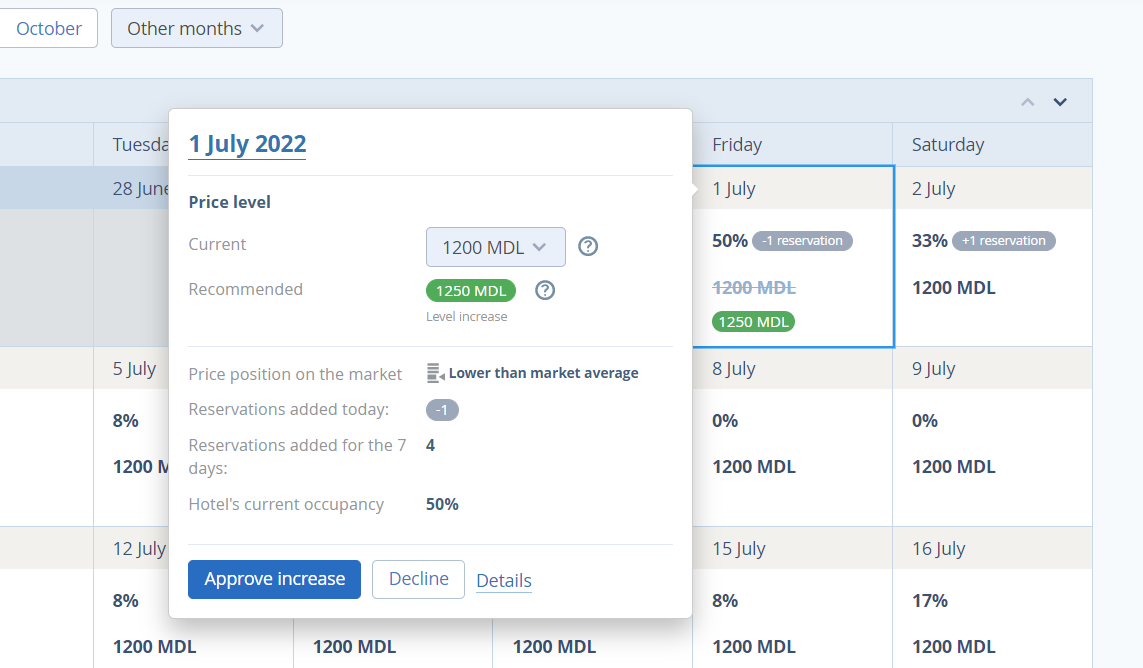
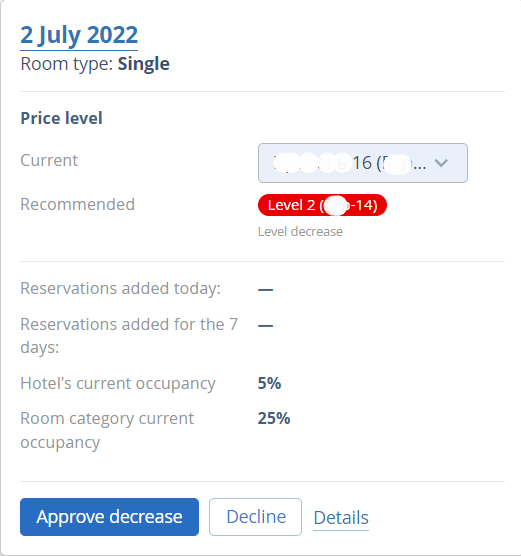
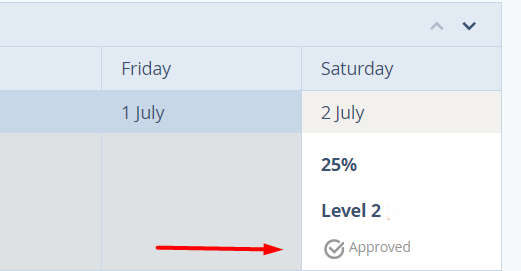
After you approve the price level change, you will see the “Approved” line in the corresponding cell.
Decline recommendations
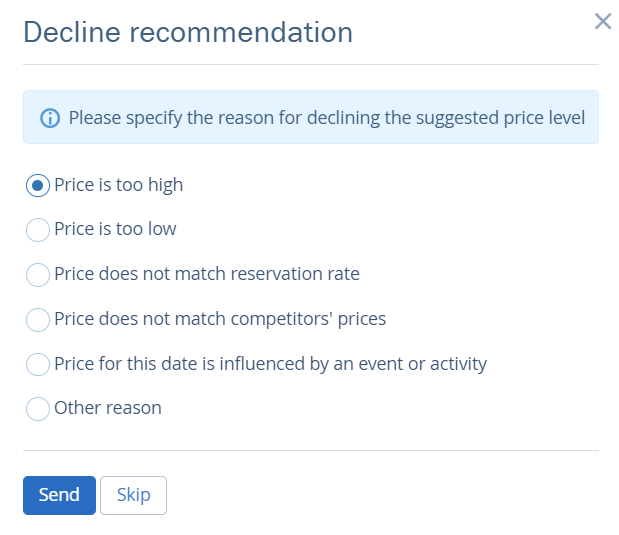
If you decide that the current price level is the best possible option, and you do not want to approve a price suggestion, click on the “Decline” button. Then, select the reason why you decline and click on the “Send” button.
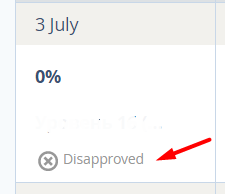
You will see the “Disapproved” line in the corresponding cell.
Manual input
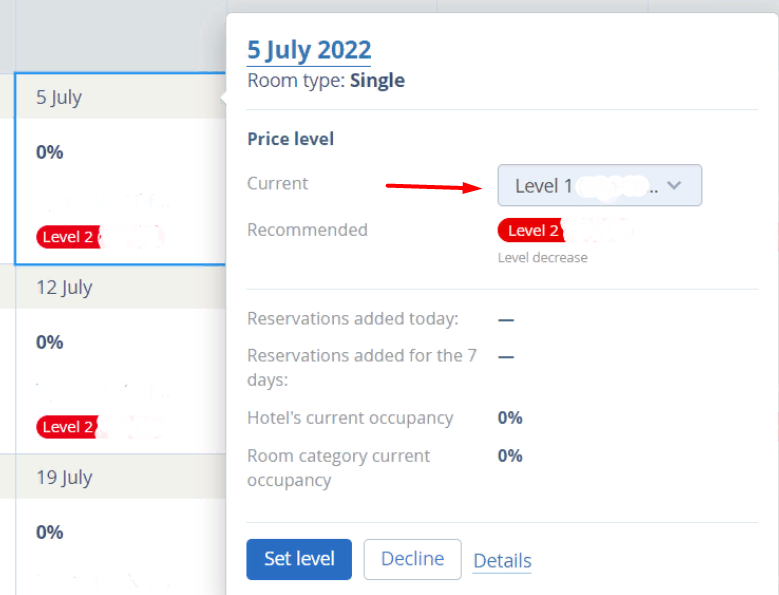
You can change a price level to any other no matter what price level is recommended. To select another price level, click on the drop-down list in the “Current” field, and select the option you need. Then, click on the “Set level” button.
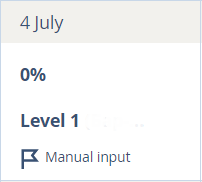
You will see the “Manual input” line in the corresponding cell.
You can set a price level manually for any date no matter if there is a price level recommendation for this date.